Wednesday, November 27, 2019

Ring Central Meeting

Business Communication Has Changed


Business communication has changed drastically from the days of just simple phone calls.  Now there's Chat, Instant Messaging, Mobile and Video Meetings.  In fact, Video Meetings are gaining so much traction that business people have started using this method of communication as their preferred way to communicate with colleagues, business partners, vendors and customers.

When it comes to choosing a Video Calling platform, there are many platforms with compelling product offerings.  Ring Central has surfaced to the top of the heap with its Ring Central Meetings product offering.  Explore the platform and let us know if you'd like a demo of the product.


Friday, October 4, 2019

Microsoft OneDrive Quick Notes


Background
Microsoft OneDrive gives you anywhere access to all your files, seamlessly integrated with Office and installed with Windows 10.   OneDrive has syncing technology that automatically sync your files to your desktop so you can work with files offline if you so chose.  You can easily access files on Windows, Mac, or mobile devices.
High level overview
  • Businesses that adopt Office365 get OneDrive capabilities at very minimal price.
  • OneDrive is in the same category as Dropbox and Box.
  • Google, Amazon AWS and others offer similar technology.
  • OneDrive has an advantageous position because Microsoft bundles the app with Office 365 and Windows 10.
  • The proliferation of file sharing technology will eventually eliminate the use of servers that primary role was File Sharing services.
OneDrive From Three Perspectives (User, IT Admin, External Use)
User Experience
File / Folder Settings / Operations
What about “My Documents” folder? 
OneDrive is setup with its own folder which is typically “C:\Users\%Username%\OneDrive\”.  OneDrive can be setup to Backup the My Documents folder via a settings in the OneDrive Tray Icon.  Secondly, Admins will want to explore “Known Folder Move (KFM)”. This will sync the Users Documents and Photos folder and make them available online.  This is a boon for Admins because previous the IT Admin did not have visibility into files that were stored locally on the user’s computer.
Where will files be saved as a default? 
“C:\Users\%Username%\OneDrive\”
I want to share files with my colleagues, how? 
Files can be shared with colleagues simply by Right Clicking on the file or files and then Click Share.
Can I share files outside of my organization? 
Yes
I work mobile, how can I access my files on my Tablet or smartphone? 
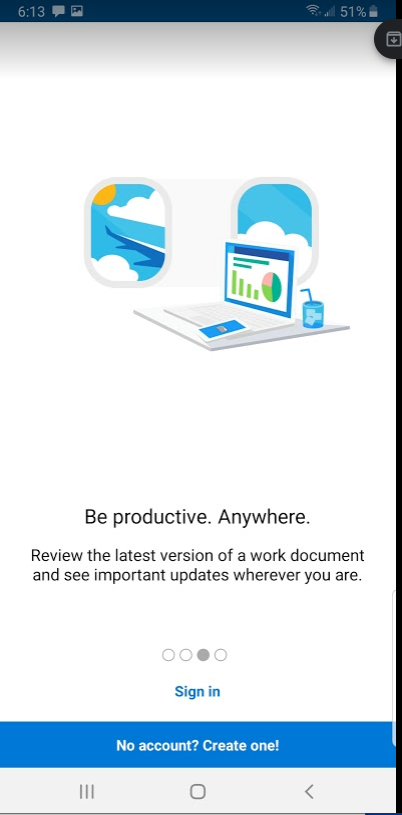
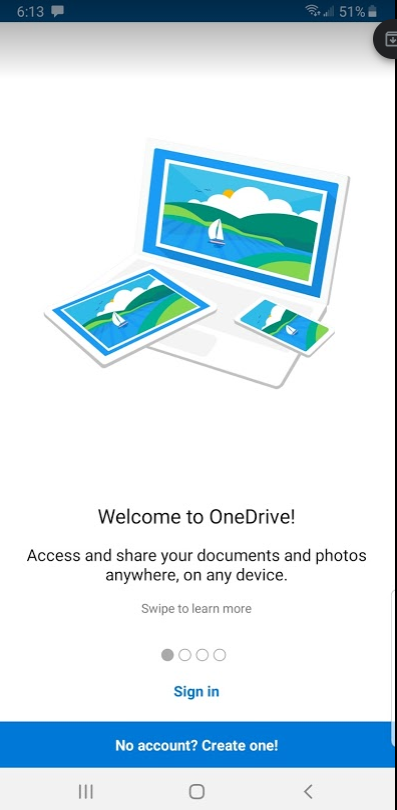
OneDrive has mobile app for both Android and iPhone.  See mobile screenshot below.
Will my files sync to/from any device I have OneDrive installed?
Yes
What about my Pictures/Photos?
OneDrive can be configured to sync Documents, Pictures, etc.
I don’t have Internet Access, will my files still be accessible?
OneDrive is capable of allowing access to files even if the Internet is not working.  The files must be identified as available “Offline” for use if Internet is not up.
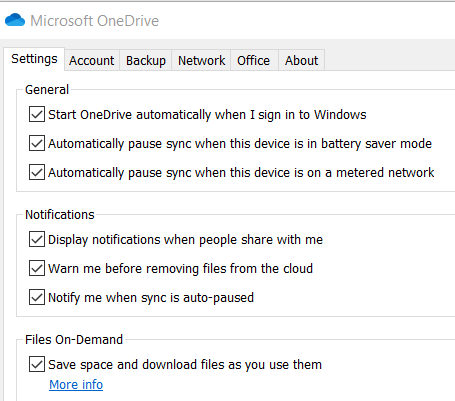
System Tray Actions
System Tray is where the user can configure OneDrive to their liking.
Permissions / Security
The User has control over who has access to their files.  The system will show which files the user has shared.
Administrator's Experience
Setup -
The IT Admin can go to https://admin.onedrive.com to manage OneDrive for their organization.
Permissions / Security / Sharing -
Can IT Admins define organization use policies?
Admins can restrict or lock down OneDrive based on company policies.

Can IT Admin restrict use of OneDrive based on location?
Admins have the ability to restrict access to files based on ip address.  This comes in handy if you do not want users accessing files outside the company walls.
Terminated Employee Actions
Terminated Employee files are available to IT Admin; even if employees remove files from their desktop before leaving, IT Admin can retrieve those files too.
Can OneDrive replace my File Server?
In some cases OneDrive will replace file servers.  OneDrive offer everything that on premise file servers offer.  Additionally, OneDrive users have an easier time sharing and managing their files then they do with on-premise Windows Server.
IT Admin may find OneDrive the answer to requests by users to have access to files outside of normal hours.  This usually requires the IT Admin to setup VPN access for the user.
External User (Vendor/Contractor) Experience
External Users have access to files based on the internal user’s action to share files.
Backup / Recovery
Does OneDrive have File Versioning or the ability to retrieve the previous version of a file?
Files on the OneDrive platform are saved such that previous versions of the file are available for immediate restore and use. 
Do you need to be concerned about backing up One Drive Files?
Use of an external backup program may be needed for the following reasons:
1)  Compliance with Backup Rules that requires that files be stored in a second location in case the primary location of the files is unavailable.  It is recommended that the IT Admin use file backup programs that are compatible with cloud file sharing systems.  Veeam and Axcient are programs that quickly come to mind.
 

2)  Restoration of files outside of OneDrive initial version history period.
3)  Need to restore files to other platforms or folders if necessary.
Next Steps
  • Establish OneDrive Awareness Campaign within your organization
  • Initiate Project to Deploy OneDrive
  • Establish Help Desk Objectives to support users as they begin to use OneDrive
Sample Screenshots
User Experience - Windows Desktop System Tray App

Location of Files

Share Files
Confidently share your files with OneDrive so others can access them seamlessly and securely, inside and outside your organization. Track the history of all activity on files to keep everyone on the same page. Use SharePoint for managing and sharing files or folders—within team sites or intranet sites, and across your organization.
Find, Co-Author and Update Files
Work on a file, save it directly to OneDrive or SharePoint, and any changes you make are updated seamlessly. Deep integration with Office lets you start co-authoring a document on one device and finish on another, and you can select from a variety of tools to annotate, highlight, and comment on it.


Mobile Screenshots


Administrator's View

Sharing - Customize how sharing works in OneDrive and SharePoint
Sync - Control how syncing works in OneDrive
Storage - Specify storage limits for all users and retention period for deleted files
Device Access – Control access and manage mobile settings
Compliance - Compliance Controls
Auditing - Data Loss Prevention (DLP), eDiscovery, Alerts
Notifications - Control Notifications in OneDrive
Data Migration - Migration Tools

Deployment Options
OneDrive deployment options include:
1)  Local Installation
2)  Scripted installation or Microsoft Intune MDM
3)  System Center Configuration Manager with Intune

Microsoft's OneDrive Planning Doc gives more specifics

Though Microsoft doesn't mention it, other MDM applications can be used to deploy
OneDrive.  IBM Maas360 is one such tool that is capable of being used to deploy
OneDrive.

Data Migration Options
Sadly Microsoft does not include any tools that will make an IT Admin life easy
when it comes to data migration.   Once you configure OneDrive and deploy
with your respective Mobile Device Management (MDM) tool, OneDrive
will initiate a sync session with the Microsoft Cloud and begin transferring
files.  Yep, that means if you have deployed OneDrive to 10s or hundreds of
users, OneDrive will start syncing all of them without regard for network
performance.  We recommend that you deploy OneDrive to Groups of Users
at a time to minimize network congestion.

As it relates to Network File Shares, Microsoft makes a tool call SharePoint
Migration Tool.  This will allow you to migrate the shared folders to the
equivalent folder you have created in SharePoint.

We recommend that you plan carefully, communicate often and execute
in phases.  This will minimize issues and ensure successful roll-out.

Data Migration Sources
(1)  Migrate to SharePoint Online and OneDrive
(2)  File Share to OneDrive and SharePoint Migration Guide
(3)  SharePoint Migration Tool
(4)  IT Admins Powershell Migration Thread

As of October 4, 2019 -
By default, the OneDrive sync app installs per user, meaning OneDrive.exe
needs to be installed for each user account on the PC under
the %localappdata% folder. With the new per-machine installation option,
you can install OneDrive under the “Program Files (x86)” directory, meaning
all profiles on the computer will use the same OneDrive.exe binary.
Other than where the sync app is installed, the behavior is the same.

OneDrive Mobile Experience - Android
It is possible to use the OneDrive app to upload photos and videos from your device
(including automatically), create new folders, and move photos and videos from one
OneDrive folder to another.  See this doc for details.

Security Tips 
You control your data.  When you put your data in OneDrive, you remain the owner of the data.
Microsoft published additional details on security that's worth reading.

About The Author
Gregory Dover is a business leader and managing principal of Pollinate Enterprises, Inc and GAD Group Technology, Inc.  He focuses on delivering solutions to the business community and leveraging technology as the primary catalyst to achieving profitable business outcomes.  Contact Greg here LinkedIn to engage his team.
Sources
OneDrive Help Center - https://support.office.com/en-us/onedrive
OneDrive Video Training - https://support.office.com/en-us/article/onedrive-video-training-1f608184-b7e6-43ca-8753-2ff679203132
Quick Start Guide - https://resources.techcommunity.microsoft.com/wp-content/uploads/2018/11/MS_Office_Quickstart.OneDrive.pdf
OneDrive for Business - https://docs.microsoft.com/en-us/onedrive/onedrive
OneDrive Admin Control Panel - https://Admin.onedrive.com
OneDrive Resources - https://products.office.com/en-us/onedrive-for-business/online-cloud-storage
Reasons to backup OneDrive - https://druva.com/blog/do-you-really-need-to-backup-office-365/
Training for Admins - https://support.office.com/en-us/article/training-for-admins-d7fbeffc-868b-4a9e-98ed-59bc70880fab?wt.mc_id=MAC_2011401_Admin_TrainingTile&ui=en-US&rs=en-US&ad=US
Setup OneDrive File Storage - https://docs.microsoft.com/en-us/office365/admin/setup/set-up-file-storage-and-sharing?view=o365-worldwide


Thursday, October 25, 2018

Let The Transformation Begin


I received an email this week stating that Microsoft is discontinuing support for Windows Server 2008.  The email came from a hardware vendor exhorting us resellers to go after this opportunity and win new server business.  The vendor indicated that there are approximately 4 Million servers out there running Windows Server 2008.  Yes, I see this as an opportunity to sell servers, but more importantly I see this as a opportunity to assist businesses with the transformation from legacy platforms to new cloud based platforms where most traditional services that ran on servers now run on cloud platforms as services without the need for a servers, operating systems and software licenses.

One might be inclined to simply go out and purchase new hardware and painstakingly move software applications to new hardware.  Some may even take this as an opportunity to do what is known as "lift and shift".  They will simply provision a new virtual machine (VM) on some cloud platform like AWS, Azure or Google, then shift their applications over to the new VM.  They'll breathe a sigh of relief and say that "we're in the cloud now".  Not so fast.  All you have really accomplished is moving the workload from your server to another server.  Yes, you'll gain some economies of scale and may even lower your total cost of ownership.  But what happens when the next operating system version come out?  What happens when the third party vendor releases a new software update for the middle-ware that orchestrates activities between your back-end processes and front-end community of customers?

I think its really time to get about the business of transforming your infrastructure. The transformation starts with documenting and diagramming your systems.  You may already have this documentation handy.  Next extrapolate the entities and processes that uniquely define your systems.  There are some common things that can readily be modeled and executed differently.  For example, People entities like Customers, Vendors and Supplies are really very similar in nature.  They all have a common business name, located at some address and have personal contacts associated with them.  There's no need to recreate the wheel here.  These entities can be modeled and implemented on a cloud platform like Salesforce.com with relative ease.  Further to the point, you can easily send email to and receive messages back from your customers or vendors inside the application.  This kind of transformation of your People entities accomplished the following:  1) Allow you to focus on the customer and not on the system 2) Quickly share information within your organization 3) Introduce High Availability to your information anytime, anywhere and on any device.  All without the need for a private network connection or special security certificates, etc.  Just imagine transforming your other business entities or processes in similar fashion.  Imagine the new capabilities this creates such as business agility and competitiveness.

While I won't turn down the opportunity to sell you a new server and move your applications over to the new server platform.  I am more interested in partnering with you and discussing how to transform your business systems to a model that does not solely rely on servers.  

Monday, February 12, 2018

onPAR Extract | Transform | Load Services


February 12, 2018  | GAD Group Technology, Inc. | 630-226-1013 | www.gadgroup.com 
GAD Group Business Analysts just completed a business integration project for a customer using our new onPAR Extract, Transform and Load (ETL) services.  The team worked closely with BMO Harris and Tyler Technologies to integrate staff purchasing data from BMO's transactions system into Tyler Tech's MUNIS Enterprise Resource Planning (ERP) system.  The bank transactions where uploaded into's MUNIS Purchasing  module.  Our services included documenting requirements, writing python code to transform the data and staff training. 

Tuesday, February 6, 2018

GAD Group Launches New Service Offering

Press Release


February 6, 2018 - GAD Group Technology, Inc. moves to revamp its traditional
managed services practice to focus on the burgeoning need for professional
services in the Managed Services sector.  The new offering (onPAR ©)
addresses Business and IT Leader’s demand for platform analysis and reporting.


Background
Businesses continue to leverage the latest in server and network technologies in
order to execute their business plans.  Recent advancements in cloud compute,
Internet of Things and continued on premise evolution, the enterprise environment
will grow ever complex and require resources to manage the sprawl and complexities.  
Managed Service Providers (MSPs) have risen to fill the manage role for this new
enterprise.  Cost efficiencies, consolidation of resources and the proliferation of large
platform providers (i.e. Amazon Web Services, Microsoft Azure, Google Cloud
Platform) have driven the cost down significantly.  Additionally, low margins and
increased regional MSP competition have driven the costs down even further.  The
traditional MSP market has become very commoditized.  


Bright spots in the market still remain.  Businesses continue to demand soft services
like just in time reporting, platform analysis, project management, business analysis,
database reporting, metrics, security analysis. etc.  It can be argued that these
services  are more valuable than the service of managing the platform.  GAD Group
Technologies Inc. has decided to evolve our traditional Managed Services Business
into Services Plus.  We envision that businesses will look to extract value from their
platforms and will be looking for a talented team to compliment their endeavors.  
GAD Group’s efforts will be offered under our new service initiative called onPAR.  
onPar is a set of services (Analysis and Reporting) applied to Open Network
Platforms and Technologies.


GAD Group’s onPAR© service offering will include Service Desk, Platform due
diligence, Platform Analysis, Reporting/Dashboards, Project Management/
Coordination, Business Analysis and CIO Services.


Service Desk - A complimentary or stand alone option for businesses to manage
outstanding issues.  Given that GAD Group has been ITIL certified since 2001,
our service desk will utilize elements of ITIL to provide service desk functions to
business customers.  Businesses benefit from one number to call to initiate a service
request.  Our team will work with respective Service Provider or Vendor to resolve
open issues.


Platform due diligence - Each platform whether Hosted or On Premise requires
attention.  Platforms are active, vibrant and change often.  Platforms publish terms
of service, backup/restore policy, business continuity, support escalation, platform
strategy and direction notices, security, security breaches, platform upgrade and
patch responsibilities to name a few.  GAD Group regularly reviews platform terms
and conditions, policies, personnel movement, security initiatives and publish our
findings for customer review.


Platform Analysis - Periodic analysis of platform architectural diagrams, network
ingress/egress reviews, device log analysis, performance statistics, storage and
metric reviews.  Frequency of analysis is determined by business IT Leader and
performed by GAD Group.


Reporting and Dashboard Generation - Key Performance Indicators (KPIs),
metrics, analysis and specific counters are compiled and published for business
review.  Businesses can chose own internal tool or use any of a number of open
source tools for reporting.


Option onPAR Services include Project Management/Project
Coordination, Business Analysis and CIO Services.  These
services are billed at a negotiated hourly rate.


Project Management / Project Coordination - Working collectively has one
cohesive team on behalf of the business, our team help drive projects to completion.  
Working together with the business IT’s resources or collectively as a trusted
extension to the business, our team provide project management, project
coordination, milestone reviews and project reporting.  Tasks related to bringing
a project to completion, on budget and on time will be performed on a daily basis
with proper reporting.


Business Analysis - Our GAD Group team have many years of experience in the
area of Human Resource Management, Accounting, Business Process Reviews,
Requirements Gathering, Use Case Diagramming, Modeling, etc.  Our team
collectively work with business customers to understand business challenges
and assist with delivery of applicable solutions.


CIO Services - IT Executives/Leaders/Managers are asked to quickly make
decisions, undertake initiatives and incubate new ideas.  GAD Group’s leadership
team can step in and manage these new initiatives or ideas to fruition.  We work
intimately with the business and its associated supply chain or partners to bring
ideas to light.


Summary
Managed Services will continue to evolve in 2018.  New players will viciously drive
down cost to perform traditional managed service functions.  Technologies such as
Virtual Machines, Dockers, Containers, Software Defined Networking, IPv6, 5G,
Telephony and Collaborative tools will continue to challenge Business and IT
Executives.  To avoid catastrophes, security breaches and natural disasters,
Business/IT Leaders will need trusted teams to assist with operating heterogeneous
platforms.  GAD Group Technology, Inc powered by our unique set of
services (onPAR ©) stand ready to meet the demands of our customers.


GAD Group Technology, Inc. an Illinois Corporation since 2001 operates facilities in
Chicago and Western Suburbs.  Our customers are spread among several industries
including local municipal government, manufacturing, education, business services,
logistics and distribution.   GAD Group Technology, Inc. maintain strategic partnerships
with Google, Microsoft, Hewlett Packard Enterprise (HPE), Clear Center, Ring Central,
Cisco Systems and Odoo.

Contact Information
GAD Group Technology, Inc
Phone:  (630) 226-1013

Sunday, July 9, 2017

June 2017 Podcast

Gregory Dover was recently interviewed by WJOL in June 2017.  Greg chronicles how GAD Group was started and his motivation for entrepreneurship.


Thursday, July 6, 2017

New Windows Server Setup

New Windows Server Setup
Notes from the field
July 6, 2017


As most of you know I like to stay technically astute and there's no better way to do that than to cover for a field tech that's on vacation.

Today I'm installing Windows Server 2016 on a new HPE ML30 Proliant Server.  The server hardware setup portion of the install went fine.  That process involved popping two hard drives into server.  The server did not come with a DVD-ROM reader so I quickly contacted another tech in the area and had him drop off his reader.  Since this is a small customer (less than 10 employees), I'll be configuring the server with RAID 1.  The process involve using HP's embedded raid array utility.  I selected both drives, each 1TB in size, which yield a new logical drive that's 995GB in size.


After RAID configuration, its time to install operating systems.  The OS install splash screen comes up and I choose Windows Server Standard 2016.  The small print for this option indicates it will install the OS without the graphical user interface (GUI).  I didn't see this up front and had to re-install to get GUI version.  This is necessary due to old Quickbooks database server that needs GUI for installation.  The other issue during the install was that Windows did not detect the new drive array and associated disk volume, so I had to go and download drives from HPE website.

New server is up and running.  I didn't expect that taking the first and default OS option would install the command line only version, so be on the lookout for that.